Showing posts with label linux. Show all posts

Friday, July 23, 2010

DVD Backups Using Linux

A couple of weeks ago, I finally got around to backing up some of my personal DVDs.  There are several methods that exist for accomplishing this task under Linux, so I'll list some of the common tools that are out there and then explain why I chose the tools I did.

In order to backup DVDs, here are three approaches you could take:
  • ISO - ISO image backups allow you to create archival quality backups of your DVDs by creating a copy of the DVD image on your computer.  This gives you the advantage of having the original video streams, audio streams, and DVD menus at the expense of increased storage requirements (between 4-8GB per DVD). Several applications support DVD playback and/or transcoding from ISO images: MythTV, VLC, Handbrake, K9Copy, etc.

    Examples of ISO backup software:
    dvdbackup/genisoimage (CLI) - The combination of these two command line tools is very useful for backing up DVDs.
    K9Copy (GUI) - I was reluctant at first to try this since it requires QT libraries to be installed on Ubuntu, but I'm glad I did.  It was the best GUI tool I found for creating ISO images of DVDs.
    Gnome (GUI) - Right-click on a disc's icon on the desktop, then select Copy Disc.... This works for some DVDs, but it won't work for everything.

  • Transcode - Transcoding involves converting the original video and audio streams on a DVD to another format (h.264, Ogg Theora, etc).  This has the advantage of shrinking your video down to 1 to 2 GB while still maintaining good quality video (although usually not as good as the original video).  These smaller video sizes are possible because newer video encoding schemes can compress video much better than MPEG-2 video which is the standard for DVDs.  Transcoding saves disk space but can take a long time if you have a slower computer.

    Examples of DVD transcoding software:
    Handbrake (GTK or CLI version) - Transcoding DVDs is its only job and it does it very well.
    K9Copy (GUI) - Equivalent to DVD Shrink on Windows.
    dvd::rip (GUI)
    mplayer/mencoder (CLI)
    Others - Thoggen, VLC, AcidRip, ogmrip

  • Requantizer - This method (think DVD Shrink or K9Copy in shrink/copy mode) can extract the mpeg-2 video stream, run it through a requantizer which degrades quality, and finally re-packs the video data into the stream again.  This method is quite fast and is usually used to shrink a dual layer DVD (approximately 9 GB) down to single layer size (approximately 4.7 GB).

    Examples of requantizer software:
    K9Copy (GUI)
    vamps (CLI) - low-level command line tool...not capable of making DVD backups on its own
This isn't meant to be an exhaustive list of solutions for backing up DVDs, but it should get you started in the right direction.  Experiment and choose the method/software that best suits your needs.

ISO Image Backup Instructions

I wanted a solution that preserved the original quality of the video and audio, so I went the route of creating ISO images of my DVDs.  One advantage to this method is that it still allows you to easily transcode to other formats later (for use on smartphones and other embedded devices) since software like Handbrake and K9Copy can read and transcode from ISO images as well as regular DVD discs.  Handbrake would be particularly well suited for transcoding from the ISO images at a later date because it allows you to queue multiple jobs.  Queuing jobs gives Handbrake the ability to transcode multiple DVD ISO's or your entire collection at once (one after the other) without having to transcode each DVD individually.  You might be waiting a long time if you have a lot of DVDs but at least it streamlines the process and minimizes the amount of interaction required on your part.

I chose to use the dvdbackup and genisoimage command line utilities since it was one of the simplest methods, plus it allowed me to automate the process in a bash script.  The first step is to use 'dvdbackup' to extract the video and menu files files from the DVD:

$ dvdbackup -M -v -r b -n dvdname

Replace dvdname with the volume label of the DVD disc (i.e. the name of the Movie).  You can leave off the '-n dvdname' option if you want because it can be automatically read from the DVD disc in most cases.  The '-M' option tells dvdbackup to mirror the entire disc. Refer to the dvdbackup man page for the other options that are used.

Next, use the files that were just extracted from the DVD to create an ISO image of the DVD:

$ genisoimage -dvd-video -udf -V dvdname -o dvdname.iso dvdname/

Again, replace each instance of dvdname in the command above with the volume label that you want stored in the ISO image that will be created.  This volume label should be a max of 32 characters, is normally all uppercase, and usually uses underscores instead of spaces.  The options used with genisoimage are explained below:
  • -dvd-video - generates a DVD video compliant filesystem
  • -udf - include UDF filesystem support
  • -V dvdname - applies the appropriate volume label to the ISO image so that when you play the ISO image in VLC or other software it will show the name of the movie
  • -o dvdname.iso - specify the output file for the image
  • dvdname/ - the directory containing the dvd files that were extracted with dvdbackup
That's it...two commands and you should have your DVD backed up.  I should note that there doesn't seem to be one method out there that works with every single disc, so be willing to use other software like K9Copy if this doesn't work.

Hardware Monitoring With the Gnome Sensors Applet

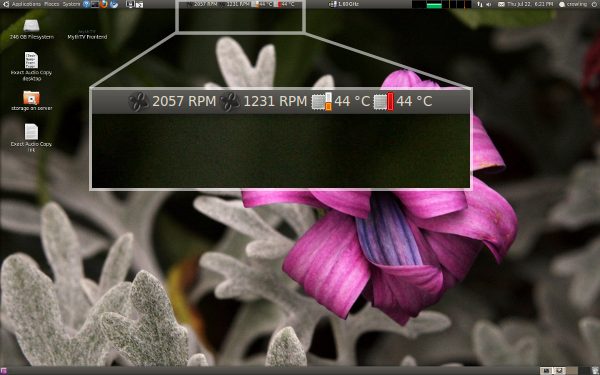
The Gnome sensors applet allows you to monitor hardware sensors (fan speeds, temperatures, voltages) in the gnome panel as shown below, but it is not installed by default in Ubuntu.

Install it with the following command:

$ sudo apt-get install sensors-applet

Now that it is installed, add it to the gnome panel by:
Right clicking on the Gnome panel (an empty area) > Add to Panel... > then add the Hardware Sensors Monitor applet.

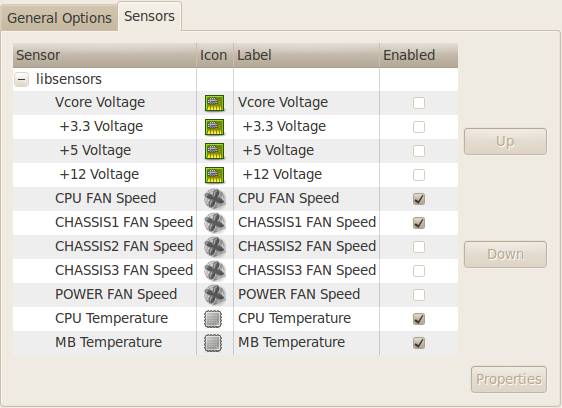
After it is added to the panel you can open up the preferences dialog (right click the sensors on the gnome panel > preferences) and choose which sensors are displayed.  The screenshot below shows the sensors that were detected by default on my system.  For each sensor, you can dive into its properties and optionally set alarms for high and low threshold values if desired.

Thursday, July 22, 2010

Hiding Those Pesky Gnome Panels

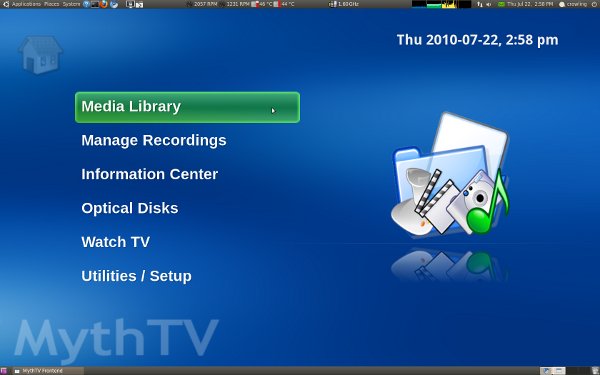
I periodically run into the problem where applications in Gnome don't go into fullscreen mode properly. The top and bottom Gnome panels remain displayed on top of everything else as in the screenshot below. This post shows how to work around this problem by modifying some compiz settings.

This seems to be a common problem with MythTV, OpenOffice Impress, and other applications that have fullscreen modes.  The fix is simple.  Install the compizconfig-settings-manager package onto your system.  On Ubuntu, the command to install it is:

$ sudo apt-get install compizconfig-settings-manager

After the installation finishes, you will have a new application, CompizConfig Settings Manager, listed under: Gnome System menu > Preferences.

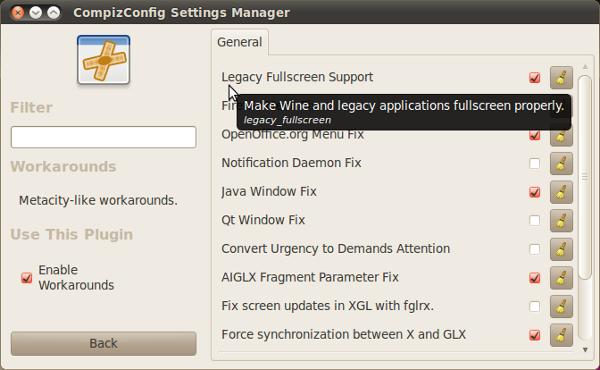
Open it and start typing 'workarounds' in the Filter search bar.  Select the Workarounds plugin and enable the Legacy Fullscreen Support option as shown in the screenshot below.

Now, the next time you open MythTV or another fullscreen application you won't get the Gnome panels showing on top of everything else.

Sunday, September 13, 2009

Asus P6T Deluxe v2 Network Problems With Linux

Asus P6T Deluxe v2
The Problem

Under certain conditions, the LAN controller (i.e. NIC) on an Asus P6T Deluxe v2 motherboard may start sending strange packets after the computer is shut down.  This constant stream of packets from the NIC may cause all traffic through your switch to halt.  The cause of the strange packets appears to be triggered by a bug in the 'sky2' network driver in Linux.  See the information below to learn more about what conditions trigger this behavior and possible workarounds that can be used until the bug is fixed.

NOTE: This problem does not apply to Windows users.

Background

I recently assembled a computer using the Asus P6T Deluxe v2 motherboard and ran into an issue with the dual gigabit LAN controllers built-in to the motherboard.  While I was at work last week, I remotely connected to my new system through SSH and then shut it down after I had retrieved some information I needed (I usually like to shut down my systems while I'm not at home just to conserve energy).  I was also connected to another sytstem at home and about fifteen minutes later, after shutting down the Asus P6T-based system, I lost all network connectivity to the systems on my home network.  Without going into too many details, I eventually found out that the LAN controllers on the P6T motherboard can sometimes go into a weird state (after the machine is shut down) where they repeatedly send packets that look like the following (output is from 'tcpdump'):

21:57:39.787385 00:26:18:46:34:67 > 01:80:c2:00:00:01, ethertype Unknown (0x8808), length 60:
        0x0000:  0001 ffff 0000 0000 0000 0000 0000 0000  ................
        0x0010:  0000 0000 0000 0000 0000 0000 0000 0000  ................
        0x0020:  0000 0000 0000 0000 0000 0000 0000       ..............

The P6T LAN controller sends about 50 of these packets per second and after a while this causes all network traffic going through my switch to cease.  As you might imagine, it is especially annoying if this happens while I am at work and no longer have a way of accessing any of my systems until I get home.

At the time I discovered this, I called Asus technical support to see if this was a known issue or if I could possibly have a faulty motherboard.  Calling them was a mistake.  All I got was a condescending tone from the other side of the line and a person telling me that it was impossible for the NIC to send packets while the system was shut down.  He wouldn't believe what I was telling him.  That conversation ended pretty quickly once I realized I wouldn't be getting any support from Asus on this issue.  Before I hung up though they did mention that someone with a Maximus II Formula motherboard had called in with a similar issue a week earlier.  I later found out that the Maximus motherboard uses the exact same LAN controller as the P6T motherboard, a Marvell 88E8056 chip.  I would suspect that any motherboard that uses this Marvell controller would experience the same network problems.

After the lack of support from Asus, I decided to dig into the issue myself and after a lot of testing I found out how to reproduce the problem 100% of the time.  Before I explain how to reproduce the behavior/bug, here is a summary of the hardware and software I have tested with:
  • Motherboard: Asus P6T Deluxe v2
    • Dual gigabit NICs using the Marvell 88E8056 chip.
    • Other motherboards using the Marvell LAN controller may also be affected.
  • Switch: Netgear GS108T Gigabit Switch
    • I'm not sure if network activity halts when other gigabit switches are used.
  • OS's: Express Gate (Splashtop Linux), Ubuntu 9.04, Ubuntu 9.10 (alpha)
Testing and Observations

The table below summarizes each of the scenarios I tested to narrow down the problem.  The first four columns in the table show the variables that were changed for each test:
  • OS / Distro - I tested on Windows, Express Gate (Splashtop), Ubuntu 9.04, and Ubuntu 9.10.
  • Kernel Version - I tested with the standard installed kernel on all distributions except Ubuntu 9.04 where I decided to test with a vanilla non-patched kernel from kernel.org in addition to the standard Ubuntu kernel.
  • Switch Port Configuration - I used a managed switch and performed tests where the switch port connected to the P6T NIC was configured for either 10, 100, or 1000 Mb/s (and it did make a difference as you'll see in the table).
  • WOL enabled before shutdown? - I recorded whether or not wake-on-lan was configured before the system was shut down (e.g on linux wake-on-lan can be turned on with a command similar to 'ethtool -s eth0 wol g').
 The last four columns record my observations:
  • Ethernet Link Reset During Shutdown? 
    • During some tests, the led link lights on the switch would indicate that the link was momentarily shut down and then reestablished at the time the system was powered down.
    • On other tests, the led link lights on the switch would indicate that the link was never reset during shutdown (as if the link was still operating in the same mode as it was when the system was turned on).
    • In other tests, power to the NIC was shut off and the link was never reestablished (as expected if WOL was not enabled).
  • Ethernet speed after shutdown - During the tests where the ethernet link to the switch was reset after the sytem was shut down, I recorded the speed of the reestablished ethernet link.
  • WOL works? - Shows whether or not wake-on-LAN worked after the system was shut down.  For some tests this column is not applicable because WOL was never enabled/configured.
  • Strange packet bug encountered? - Shows whether or not I was able to see the strange packet sending behavior.
    • NOTE: In cases where the packet sending bug was observed, I first had to send around eight broadcast packets on the network to trigger the problem where the P6T NIC started sending the strange packets.  I could send any type of broadcast packet.  For example, the problem could be triggered by sending either broadcast pings (e.g 'ping -b 192.168.1.255') or wake-on-LAN magic packets (they didn't have to be specifically directed to the P6T NIC MAC address).
    • NOTE: In each case where I encountered the packet sending bug, traffic immediately resumed through the switch after after unplugging the cable from the offending network port.

Evironment / Settings
Observations
 OS/Distro Kernel
Version

Switch Port
Configuration
(Mb/s)
WOL
enabled
before
shutdown?
Ethernet Link
Reset During
Shutdown?
Ethernet
speed after
shutdown
WOL
works?
Strange
packet bug
encountered?
Windows 7 RTM n/a 10 yes yes 10 yes no
Windows 7 RTM n/a 100 yes yes 10 yes no
Windows 7 RTM n/a 1000 yes yes 10 yes no
Express Gate Unknown 10 no no 10 n/a
(WOL not
enabled)
no
Express Gate Unknown 100 no no 100 n/a
(WOL not
enabled)
no
Express Gate Unknown 1000 no no 1000 n/a
(WOL not
enabled)
yes
Ubuntu 9.04 2.6.28,
2.6.31
10 yes yes 10 no no
Ubuntu 9.04 2.6.28,
2.6.31
100 yes yes 100 no no
Ubuntu 9.04 2.6.28,
2.6.31
1000 yes yes 100 no no
Ubuntu 9.04 2.6.28,
2.6.31
10 no no n/a
(NIC gets
powered
down)
n/a
(WOL not
enabled)
no
Ubuntu 9.04 2.6.28,
2.6.31
100 no no n/a
(NIC gets
powered
down)
n/a
(WOL not
enabled)
no
Ubuntu 9.04 2.6.28,
2.6.31
1000 no
no
n/a
(NIC gets
powered
down)
n/a
(WOL not
enabled)
no
Ubuntu 9.10 2.6.31 10 yes yes 10 no no
Ubuntu 9.10 2.6.31 100 yes yes 10 no no
Ubuntu 9.10 2.6.31 1000 yes yes 100 no no
Ubuntu 9.10 2.6.31 10 no no 10 n/a
(WOL not
enabled)
no
Ubuntu 9.10 2.6.31 100 no no 100 n/a
(WOL not
enabled)
no
Ubuntu 9.10 2.6.31 1000 no no 1000 n/a
(WOL not
enabled)
yes

A couple of things to note from the table:
  • On Windows, where WOL worked and the bug was never encountered, the ethernet link was always reestablished at 10 Mb/s when the system was shut down no matter what speed of the link was when the system was powered on.
    • On Linux, if WOL was enabled, the ethernet link would be reestablished at either 10 or 100 Mb/s when the sytem was shut down (depending on the speed of the link while the system was running).
  • On Linux, when WOL was not enabled and the system was affected by the bug, the ethernet link was never reset when the system was shut down and it remained operating at the same speed as when the system was running.  It was as if the NIC was still operating in the same mode as when the sytem was turned on instead of going into a special mode that listened for WOL packets.
Summary

The strange packet sending bug was encountered if all of the following conditions were met:
  • The system was powered down from one of the following distros
    • Ubuntu 9.10
    • Express Gate (i.e. Splashtop) Linux built-in on the motherboard
    • Status of other distros is unknown.  I suspect that this problem may not be kernel-version specific but due to a patch that some distros apply to the sky2 driver...but I am not certain.
  • A Gigabit switch was used AND the ethernet link between the switch and LAN controller was established at 1000 Mb/s before the system was shut down
  • The sky2 network driver was not configured for wake-on-lan before the system was shut down
Possible Workarounds:
  • Enable wake-on-lan before the system is shut down (wake-on-lan will not work, but at least the NIC won't start sending the strange packets)
  • Use a Linux distro or kernel that does not exhibit this problem
Anyhow, hopefully this helps somebody that has been experiencing the same network problems and wasn't sure why it was happening (I was worried for a little bit that it might be a faulty motherboard or a failing switch).  If this problem gets fixed in the sky2 driver on Linux, I'll update this post to reflect the status.

Friday, September 11, 2009

Wake-On-LAN With Windows 7 and Asus P6T Deluxe v2 Motherboard

Article Last Updated: 3/3/2010

These instructions describe the steps required to get wake-on-lan (WOL) working with an Asus P6T Deluxe v2 motherboard and Windows 7 RTM.  Even if you don't have this specific motherboard, the instructions should be sufficient for learning how to enable WOL on most Windows systems. Also, I'll assume that if you found these instructions you already know what WOL is so I'll skip the explanation.

NOTE: For Linux users, WOL isn't currently working with the NICs on this motherboard.  These NICs use the 'sky2' network driver which has apparently had a history of problems.  I've tested on Ubuntu 9.04 and 9.10 with both standard Ubuntu kernels and vanilla 2.6.31 kernels from kernel.org and WOL just doesn't work.  I've also found other issues with these 'sky2' driver on Linux and will make another blog post on that subject soon.

To get WOL working on the Asus P6T Deluxe v2 motherboard, you will need to perform the following steps:
  1. Enable wake-on-lan in the systems BIOS setup utility
  2. Install the most recent network driver available through Windows Update
  3. Make sure the network driver in Windows 7 is configured properly for wake-on-lan
Each of these steps is shown in greater detail below.  Also, in case it isn't clear, since WOL needs to be enabled through the operating system as well as through the BIOS it will only work after you power down from the OS that you enabled the settings in.  For example, if you have a dual boot system with both Linux and Windows (and have only enabled WOL settings through Windows), WOL will only work after the computer has been shut down from Windows.

BIOS Setup

Enter the BIOS setup before the system boots and go to the Power tab --> APM Configuration screen and make sure that Power On By PCIE Devices is enabled.

The NICs in this motherboard are connected through the PCI-Express bus so Power on by PCIE Devices is the only option you need to enable (i.e. Power On by PCI Devices is not needed).  For other systems, you may need to consult your computer or motherboard documentation for information on what settings you need to enable for wake-on-lan support.

Install Most Recent Network Drivers from Asus

Update (3/3/2010) - It is no longer necessary to download the network driver from the Asus website. The Marvell driver that is available through Windows Update provides the desired functionality, so just make sure Windows is up-to-date.

On Windows 7 RTM (i.e. the final retail version), the network drivers that are automatically added by the OS during installation do not work with wake-on-lan.  I had to install the latest drivers from the Asus download site (http://support.asus.com/download) before WOL started working.  In the future, Microsoft may provide a more up-to-date driver for these network cards but as of right now (9/11/2009) it is necessary to download the more recent driver from Asus.

Enable Wake-On-LAN in the Network Driver Settings

Open the driver configuration window for the NIC by opening the system Control Panel --> opening the Device Manager --> expanding Network adapters, then right-clicking on the Marvell Yukon Gigabit Ethernet Controller and selecting properties.  This will bring up the driver configuration window seen below. Go to the Advanced tab and make sure that Wake From Shutdown is set to On.


Also, make sure that Wake-Up Capabilities is set to Magic Packet (you don't need Magic Packet and Pattern Match unless you know what it is).


Next, go to the Power Management tab and make sure your settings match the following (they should all be enabled by default):

That is it.  You should now be able to power off your machine and wake it with your preferred WOL utility/software.